

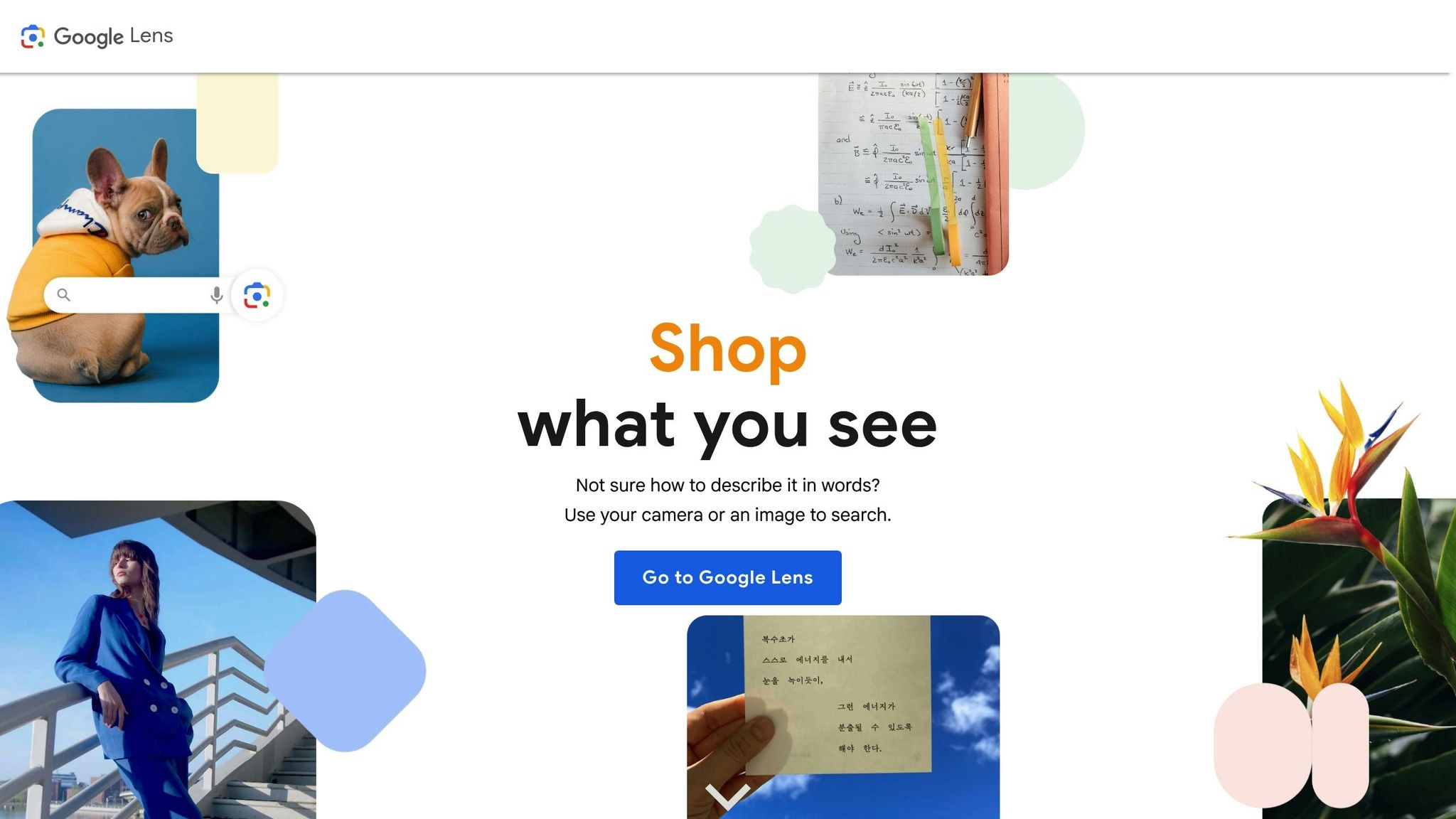
Google Lens is a tool that turns your smartphone camera into a visual search engine. Instead of typing, you aim your camera at an object, text, or scene, and Lens provides information instantly. You can identify landmarks, translate text in over 100 languages, find products online, and extract text from images. It’s accessible via the Google app, Google Photos, Chrome, and some native camera apps.
Key Features:
- Identify Objects & Landmarks: Recognizes items, plants, animals, and locations.
- Translate Text: Supports real-time translation for over 100 languages.
- Shopping Assistance: Finds product details, prices, and availability.
- Extract Text: Copies text from images for easy sharing or saving.
- Video Search (2025 Update): Analyzes live video for real-time insights.
How to Access Google Lens:
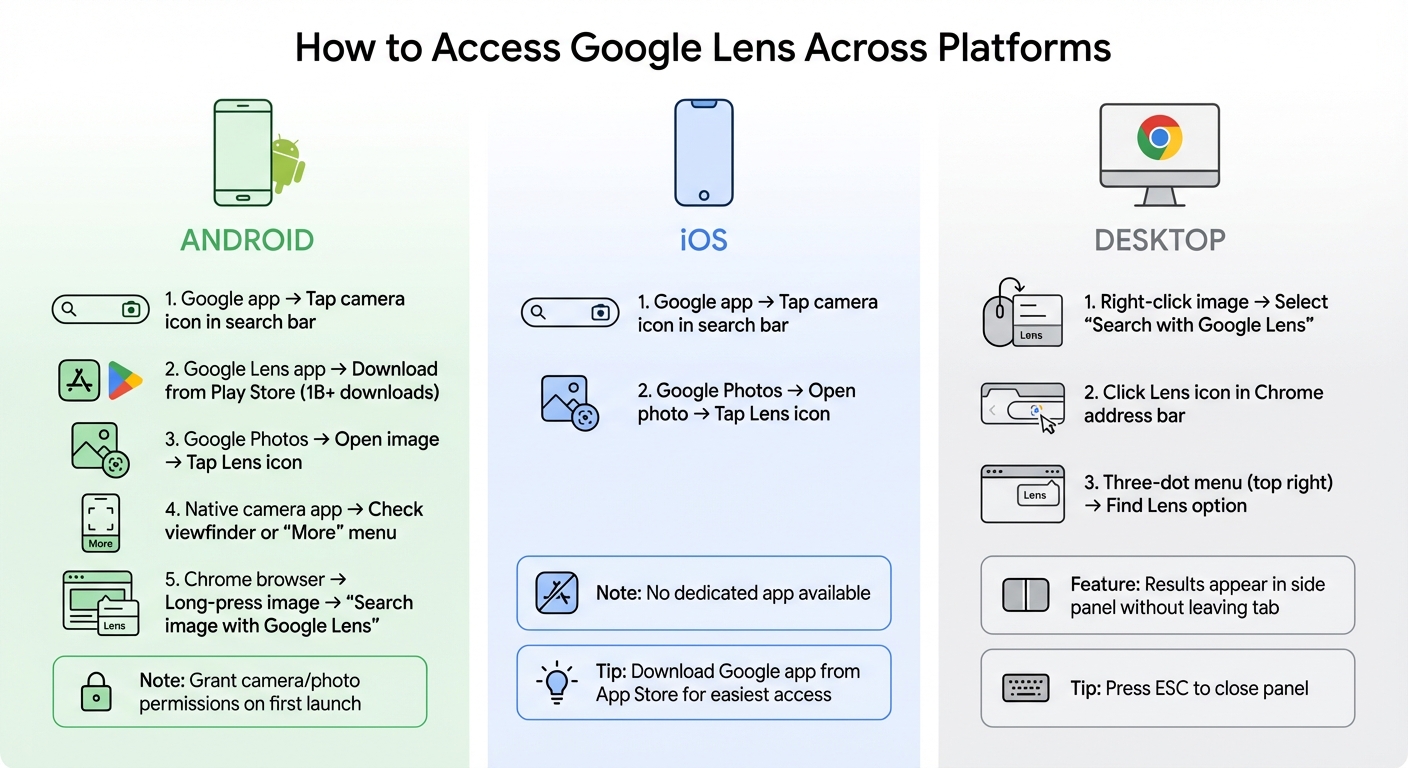
- Android: Use the Google app, Google Photos, or the Lens app. Some devices have it built into the camera.
- iOS: Access it via the Google app or Google Photos.
- Desktop: Use Google Chrome by right-clicking images or selecting “Search with Google Lens.”
Google Lens simplifies everyday tasks like translating menus, identifying items, and comparing prices, making it a practical tool for both personal and professional use.
Mastering Google Lens: A Beginner’s Guide
How to Access Google Lens
How to Access Google Lens on Android, iOS, and Desktop – Complete Guide
Getting started with Google Lens is straightforward. Here’s how you can use it across different platforms.
On Android Devices
For Android users, Google Lens is readily available in several ways:
- Open the Google app and tap the camera icon in the search bar.
- Download the standalone Google Lens app from the Google Play Store, which has surpassed 1 billion downloads as of August 2025 [3].
- Use it within Google Photos by opening an image and tapping the Lens icon at the bottom.
- Many Android devices include Lens in their native camera apps. Check the viewfinder or the “More” menu for the Lens icon. On some phones, the Lens icon is even embedded in the home screen search bar.
When you launch Lens for the first time, make sure to grant the necessary permissions for camera and photo access to enable real-time features. If you’re browsing with Chrome, you can also long-press any image and select “Search image with Google Lens” for instant results.
On iOS Devices
iPhone users don’t have a dedicated Google Lens app, but you can still access it through the Google app or Google Photos:
- In the Google app, tap the camera icon in the search bar to start using Lens.
- In Google Photos, open a photo and tap the Lens icon at the bottom.
The functionality is nearly identical to Android, though barcode recognition may differ slightly. For the easiest experience, download the Google app from the App Store.
These options allow you to quickly identify objects, translate text, and more. Let’s move on to desktop access.
On Desktop Browsers
Google Lens is seamlessly integrated into the Google Chrome desktop browser, making it easy to use while browsing. To access Lens:
- Right-click on any image or section of a webpage and select “Search with Google Lens”.
- Alternatively, click the Lens icon in the Chrome address bar or find it in the three-dot “More” menu in the top right.
“With Google Lens in Chrome desktop, easily select, search and ask questions about anything you see on the web, all without leaving your current tab.” – Google [4]
When you use Lens in Chrome, the browser processes your query by sending a screenshot and page data. Results appear in a side panel, allowing you to continue viewing the original webpage. To close the panel, simply press the Esc key.
These methods ensure you can use Google Lens effortlessly, no matter your device.
What Google Lens Can Do
Google Lens processes billions of images using advanced machine learning techniques [6][8]. Here’s a breakdown of how this tool can simplify and enhance your daily life.
Identify Objects and Landmarks
With Google Lens, you can point your camera at almost anything, and it will identify the object or landmark in front of you. The tool uses visual data, metadata, and even your location (if allowed) to distinguish between similar-looking items or places [6]. For example, it can differentiate the Eiffel Tower in Paris from its replicas by combining its analysis with geographic data [6][2].
“Google Lens is a powerful tool that lets you search what you see. You can point your camera at anything, ask a question, and get an AI overview with key information.”
– Lou Wang, Senior Director, Product Management, Google Search [5]
A 2025 update has made it even smarter, allowing Lens to analyze camera motion in real time for more precise identification [3]. You can also try multimodal search – just point your camera at something and ask questions out loud to get an AI-generated summary along with useful links [5]. Whether it’s identifying a dog breed at the park, learning about a monument’s history, or diagnosing a skin condition, Lens has you covered. You can even crop photos or adjust angles for better results [1].
But Lens isn’t just about recognizing objects – it also excels at making text more accessible.
Translate Text in Real-Time
Traveling in a foreign country? Google Lens can translate text from over 100 languages instantly [7]. Whether it’s a menu, a street sign, or a train schedule, Lens overlays the translated text directly onto the original image, making it incredibly easy to understand [1].
“The app overlays translated text over the original image. It works best when you have a clear and unobstructed view of the text. Even when it’s not perfect, it’s usually enough to understand the gist of the text.”
– Bogdan Petrovan, Android Authority [1]
Lens usually detects the source language automatically, but you can also manually select language pairs if needed [1]. Once translated, the text can be copied, sent to a connected computer via Chrome, or searched online [1]. The Listen feature is especially handy – it reads the translated text aloud, helping with pronunciation and accessibility [1]. Recent AI updates (2025) have added features like summarizing translated text or highlighting specific details, such as vegetarian options on a restaurant menu [5].
Lens’s capabilities extend beyond text and landmarks – it’s also a powerful shopping assistant.
Shop and Compare Products
Did you know that 20% of all Google Lens searches are shopping-related [8]? Simply snap a picture or upload an image of a product, and Lens will provide details like price, discounts, and where to buy it [5]. This is powered by Google’s Shopping Graph, which includes over 45 billion products [8].
“Lens merges the power of Google’s AI and more than 45 billion products in the Shopping Graph to not only help you discover visual matches of what you love, but also identify specific products and details about them before you buy.”
– Lilian Rincon, Vice President, Product Management, Google [8]
On select Android devices, you can use Circle to Search by long-pressing the home button or navigation bar, then circling an item within any app, including social media or video platforms [8]. This feature has become a weekly habit for one-third of its users [8]. You can refine searches by adding descriptive terms like “green” or “velvet” when looking for a couch [8]. When shopping in stores, Lens helps you compare prices, check availability, and read reviews by scanning barcodes or product labels [5]. It’s especially useful for pinpointing exact matches for electronics, books, and household goods [1].
Extract and Use Text from Images
Google Lens can turn text from images into something you can interact with. Snap a photo of a business card, flyer, or screenshot, and Lens lets you copy phone numbers, email addresses, or URLs instantly [1]. You can then add contacts, make calls, or even track packages directly from the extracted text. Once captured, the text can be copied, shared, or searched online with ease [1].
Search Using Video (2025 Update)
Starting in 2025, Google Lens has expanded its capabilities to include real-time video analysis [3]. This feature allows you to record videos and receive on-the-go insights. By panning your camera across a scene, Lens can analyze motion and deliver detailed, context-rich results [3]. Additionally, it now offers AI-generated summaries (AI Overviews) for objects like artwork or landmarks, giving you quick access to essential information without digging through multiple search results [5].
For the best results, ensure your subject is well-lit and in focus.
sbb-itb-16c0a3c
Tips for Getting More from Google Lens
Travel and Daily Tasks
Google Lens can simplify life, especially when you’re in unfamiliar places. Traveling abroad? Aim Lens at a menu to instantly see popular dishes and dietary options, complete with reviews pulled from Google Maps [5]. Need to navigate a foreign city? Scan street signs or event posters to open directions in Maps or save important details for later [7].
Visiting a museum? The Listen feature lets you hear translations with accurate pronunciation, making the experience more immersive. While these features are perfect for travel, they also hint at how Lens can be a game-changer in everyday tasks and business settings.
Marketing and Visual Search
For marketers, Google Lens is more than just a handy tool – it’s a way to connect with customers ready to make a purchase. To take full advantage, ensure your images are high-quality: clear, well-lit, and centered. Lens uses metadata to rank images, so optimizing these elements can improve visibility [6].
Want to bridge the gap between physical and digital? Add QR codes to packaging or promotional materials. Lens doubles as a universal scanner, allowing users to quickly access online content [1]. The integration of Lens into Chrome’s desktop address bar means users can now search images without leaving their browser tab [5]. Including structured data – like pricing, reviews, and stock availability – can also boost your product’s discoverability in shopping results [5].
New 2025 Features
The 2025 updates to Google Lens take its capabilities to the next level for both personal and professional use. One standout feature is AI Overviews, which delivers instant summaries when you point your camera at an object and ask a question. Whether you type or speak your query, you’ll get key information and helpful links in a single snapshot [5][9]. Voice queries now work seamlessly with AI Overviews and enhanced video search, providing sharper, more relevant results [3][5][9].
“With voice input in Lens, you can search what you see and ask a question about it all in one go, so it’s more natural and intuitive to explore the world around you.”
– Zahra Thompson, Contributor, The Keyword [9]
Another useful feature is Copy to computer, which lets you transfer long paragraphs or handwritten serial numbers directly from your phone to your desktop clipboard via Chrome [7]. When shopping in-store, you can snap a photo to compare prices, check deals, and read reviews – all without needing to switch between apps [5].
And for those concerned about misinformation, the “About this image” tool helps verify online content by showing how images are used across news and fact-checking sites. It’s a straightforward way to ensure the content you’re viewing is reliable [5].
Conclusion
Google Lens changes how we interact with the world, transforming your camera into a visual search engine. From identifying plants and translating text to comparing prices, it provides quick, actionable information right at your fingertips. Its growing popularity shows how much users appreciate its practical, everyday uses [3].
It’s not just for personal convenience – professionals are finding it indispensable too. Features like scanning business cards or digitizing text with the “Copy to computer” function make tasks faster and more efficient [1].
“Think of it as Google Search but for images. It lets you look up information on things you see, translate and copy text from pictures, get help with schoolwork, and much more. The best thing about it? It doesn’t require any typing.”
– Edgar Cervantes, Android Authority [1]
Looking ahead, updates planned for 2025 will make Lens even smarter. Features like AI Overviews and voice-enabled queries will offer real-time help – whether you’re verifying online images or simply pointing your camera at something and asking questions [5].
FAQs
What is Google Lens, and how does it recognize objects and landmarks?
Google Lens taps into AI-driven image recognition to analyze and identify objects or landmarks in your photos. By comparing the visual details – like shapes, colors, and patterns – against a massive database of images, it works to deliver precise matches. It also factors in contextual elements, such as nearby text or metadata, to enhance accuracy.
For instance, while traveling, you can use Google Lens to recognize a landmark and learn more about its history. Or, if you spot an unfamiliar plant or product, the tool can help you quickly gather more information. It’s a handy resource for discovering, learning, and solving everyday puzzles on the spot.
Can Google Lens translate handwritten text?
Google Lens is a handy tool for translating printed text directly from images. Whether you’re trying to understand signs, menus, or documents in another language, it can make the process seamless. However, it’s important to note that it doesn’t yet support translating handwritten text. To get the most accurate translations, make sure the text in your image is clear and easy to read.
What are the latest Google Lens features introduced in 2025?
In 2025, Google Lens rolled out a range of features designed to simplify everyday tasks. With instant translation, you can point your camera at foreign text and see it translated in real time. It also lets you copy handwritten notes, making it easier to transfer scribbles to your device. Looking to shop? The product-matching feature helps you find items like clothes or furniture with just a quick scan.
But that’s not all – Google Lens now offers AI-powered homework assistance, helps identify plants and animals, and even allows you to scan QR codes directly from photos. Another useful addition is the ability to create calendar events straight from posters or flyers, streamlining how you stay organized.
These updates make Google Lens a versatile tool, whether you’re tackling schoolwork, exploring nature, or planning your next activity.